

Wednesday, August 20, 2008
 Subversion on OSX comes of age
Wednesday, August 20, 2008 
I've been using TortoiseSVN on the PC for ages, and it really rocks. Contextual menus, status icons, etc. makes working with Subversion a breeze there. However, a while back I tried to get it rolling in a useful manner on OS X and it never really felt good enough to use. No more.
 Now, to get Finder integration, you can grab this plugin (SCPlugin). The current build works for me in Leopard, previous versions were super buggy and crashed my system a whole lot. After download & installing (I used the one for Subversion 1.4.6 since my Subversion is actually 1.4.4) you'll need to log out and then back in.
Here are a few quick tips on getting up to snuff using OS X.
Get svnX. I actually prefer it to Versions. Versions looks great, but it doesn't feel as good to me, I feel like I can do a lot more using svnX (which is free by the way). Versions is dog slow compared to svnX too at the moment. If it ever gets a speed boost, I might reconsider.
If you try to connect to a subversion server using svnX and the certificate has expired on that server, you get an error message that's basically a dump of string data you'd see in the Terminal. Helpful, but you can't act on it (fingerprint). You'll need to do this:
svn list yourhttpsurl
And then you can deny, accept temporarily or accept permanently to allow for a connection. Works for me.
Now, to get Finder integration, you can grab this plugin (SCPlugin). The current build works for me in Leopard, previous versions were super buggy and crashed my system a whole lot. After download & installing (I used the one for Subversion 1.4.6 since my Subversion is actually 1.4.4) you'll need to log out and then back in. Interior files and folders will properly have status icons displayed, however root folders for me didn't. I had to right-click, and choose Update for the status icons to appear. Yes, right-click integration works!
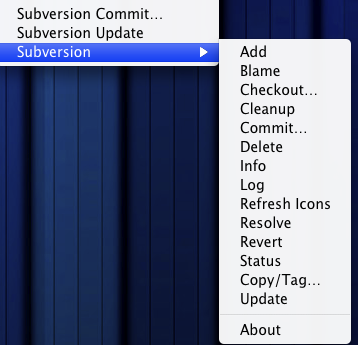
It looks like this (it's all tucked away in the More menu item at the bottom of the contextual menu):

Comments:
There are currently 0 Comments:
