

Friday, May 16, 2008
 Leopard better screenshots!
Friday, May 16, 2008 
Have you ever tried taking a screenshot of a DVD using Apple's built-in screenshot software? You'll get this dialog:
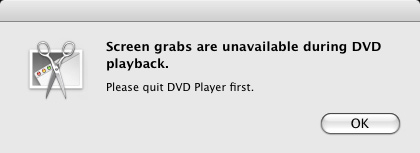
That's not very helpful, is it? Well, take this MPAA. In Leopard, you'll need to turn your Scripts menu on. To do this launch the AppleScript Utility, and choose to show the menu in the Menubar. Cool. Now you just need the scripts to take screenshots.
Navigate to ~/Library/Scripts
You'll see a bunch of folder there already containing scripts, ready for your use. Cool. Now just add one and call it something like "~Screenshots" or something like that (the tilde is so that it will appear at the top of your Scripts Menu list). We'll make four files in this folder:

That's not very helpful, is it? Well, take this MPAA. In Leopard, you'll need to turn your Scripts menu on. To do this launch the AppleScript Utility, and choose to show the menu in the Menubar. Cool. Now you just need the scripts to take screenshots.
Navigate to ~/Library/Scripts
You'll see a bunch of folder there already containing scripts, ready for your use. Cool. Now just add one and call it something like "~Screenshots" or something like that (the tilde is so that it will appear at the top of your Scripts Menu list). We'll make four files in this folder:
- Mouse Capture Clipboard
- Mouse Capture Desktop
- Full Capture Clipboard
- Full Capture Desktop
Now comes the easy part... coding the files.
There are three parameters you can use in the Unix terminal for screenshots...
-i (interactive mode)
-o (in Window capture mode, ignore drop shadows)
-c (send to Clipboard)
Now, lets' write the first script ("Mouse Capture Clipboard.scpt"):
Open up Script Editor.app (Applications/AppleScript/Script Editor) and all you need is this line:
do shell script "screencapture -ioc"
Save that in the "~Screenshots" folder you made earlier. All this does is call screencapture with the arguments of interactive, no shadows, and send to the clipboard.
Note that when you're in interactive mode (mouse cursor), you can press the SPACEBAR to invoke window capture mode. The "o" in the above line tells the capture application to ignore window shadowing. You can remove this if you actually like the shadows being part of the capture.
See how easy that was? AND it allows screenshots of the DVD Player.
Now lets create the file "Mouse Capture Desktop.scpt" to instead save the capture to the desktop.
do shell script "screencapture -io ~/Desktop/screenshot.png"
Notice that this is missing the "c" in the arguments because if the utility encounters that, it will only send to the Clipboard and ignore the file. So the above script sends the capture to the desktop, named "screenshot.png" - note that if there is a file by that name already, it will be over-written.
Easy. Now you can see what to do for the last two files... you merely don't use the "i" in the arguments so that by default you're taking the entire screen.
So with the above, I was able to grab this ;)

Comments:
There are currently 0 Comments:
